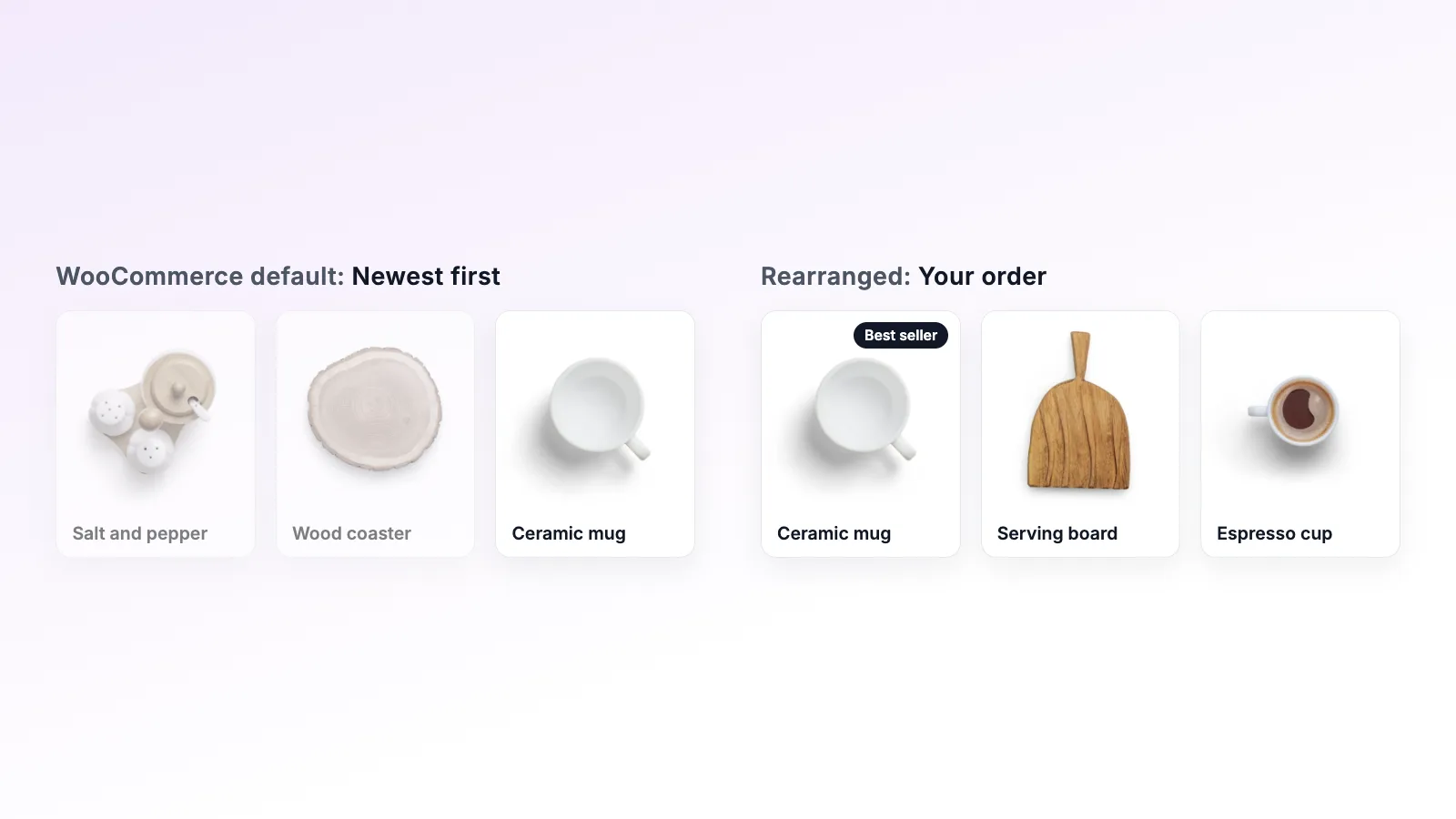
WooCommerce product order not changing? How to fix it
You saved a new product order but the shop looks the same. Check the default sorting setting, your cache, category orders, shortcodes, page builders and the other usual causes.
You dragged your products into place, saved, opened the shop, and nothing moved. Usually that's a setting, not a bug. The checks below are ordered from most to least likely, and the first three fix most cases.
1. Check the default product sorting
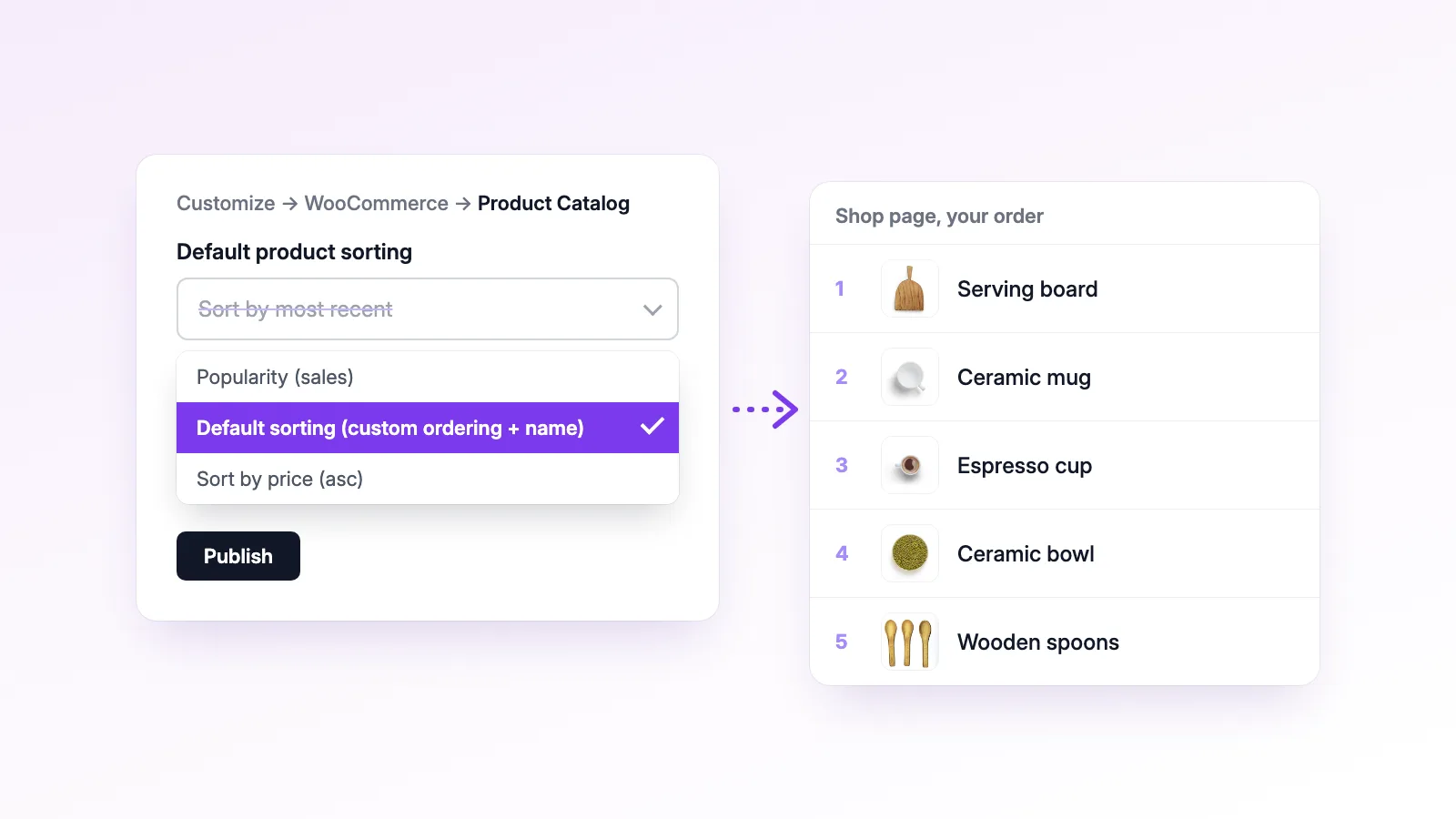
WooCommerce only shows a custom order when the shop is set to use one. Go to Appearance → Customize → WooCommerce → Product Catalog, find Default product sorting and choose Default sorting (custom ordering + name). Click Publish.
If it's set to popularity, average rating, most recent or price, WooCommerce sorts by that instead of your arrangement. Some themes have a sorting option of their own in the theme settings, so check there too if the Customizer setting is already right.
2. Clear your cache
Caching plugins such as WP Rocket, LiteSpeed Cache and W3 Total Cache keep a saved copy of the shop page. So do many hosts and CDNs like Cloudflare. That copy can be from before you changed the order.
Purge the cache in your caching plugin, and in your host's dashboard or CDN if you use one. Then open the shop in a private window. If the new order shows while you're logged in but not in the private window, caching is the cause, because most page caches skip logged-in users.
3. Look at the right page
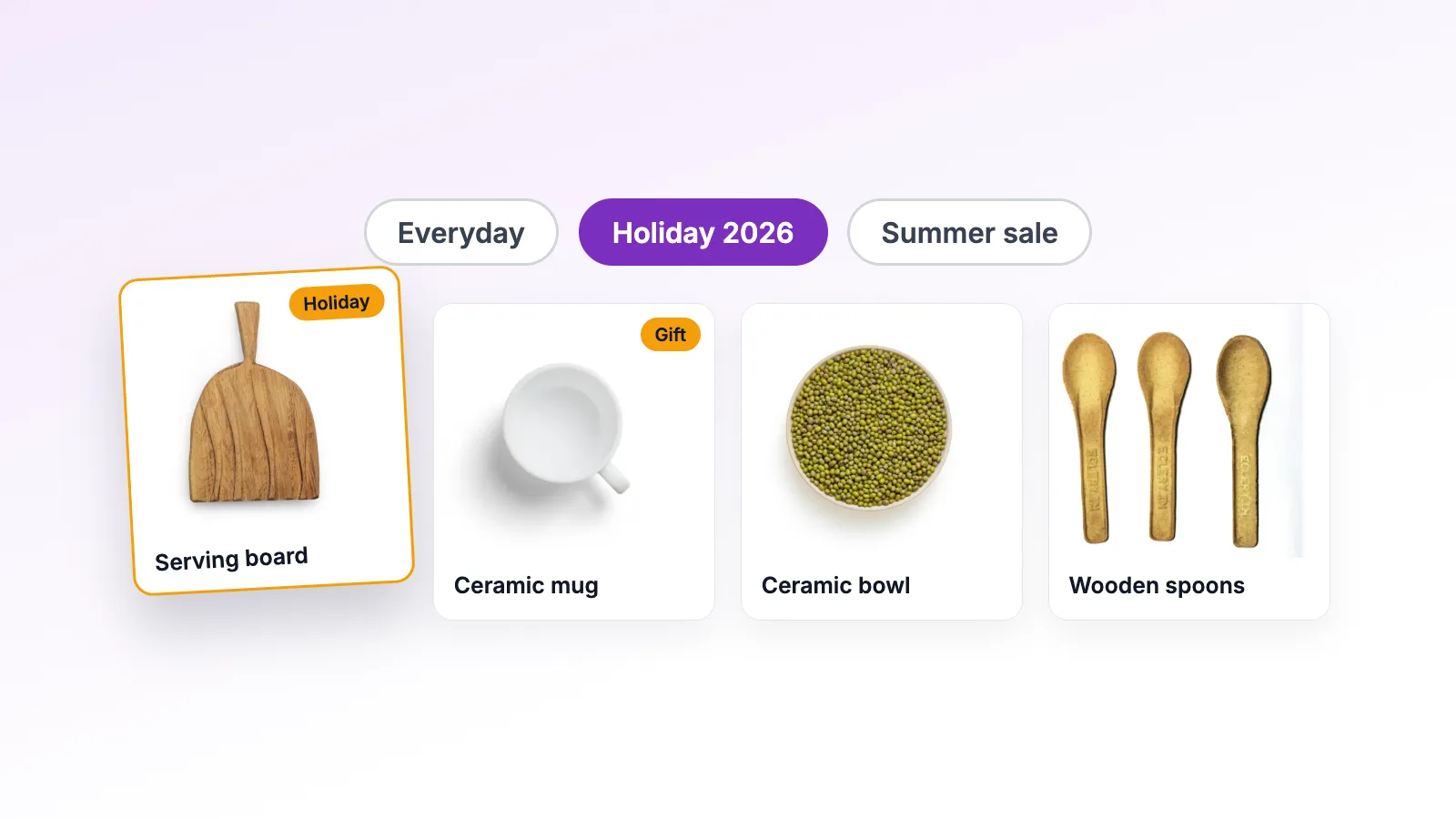
The main shop page and each category have their own order:
- Sort by Products sets the order of the main shop page.
- Sort by Categories sets the order of one category page, such as
/product-category/mugs/.
A product in three categories has a position in each of them and one more on the shop page. If you arranged the shop page but you're checking a category page, you'll see that category's order.
Also check the address bar. If it ends in something like ?orderby=price, someone picked an option from the shop's sorting dropdown. Load the page without it.
4. Sold-out products moving down on their own
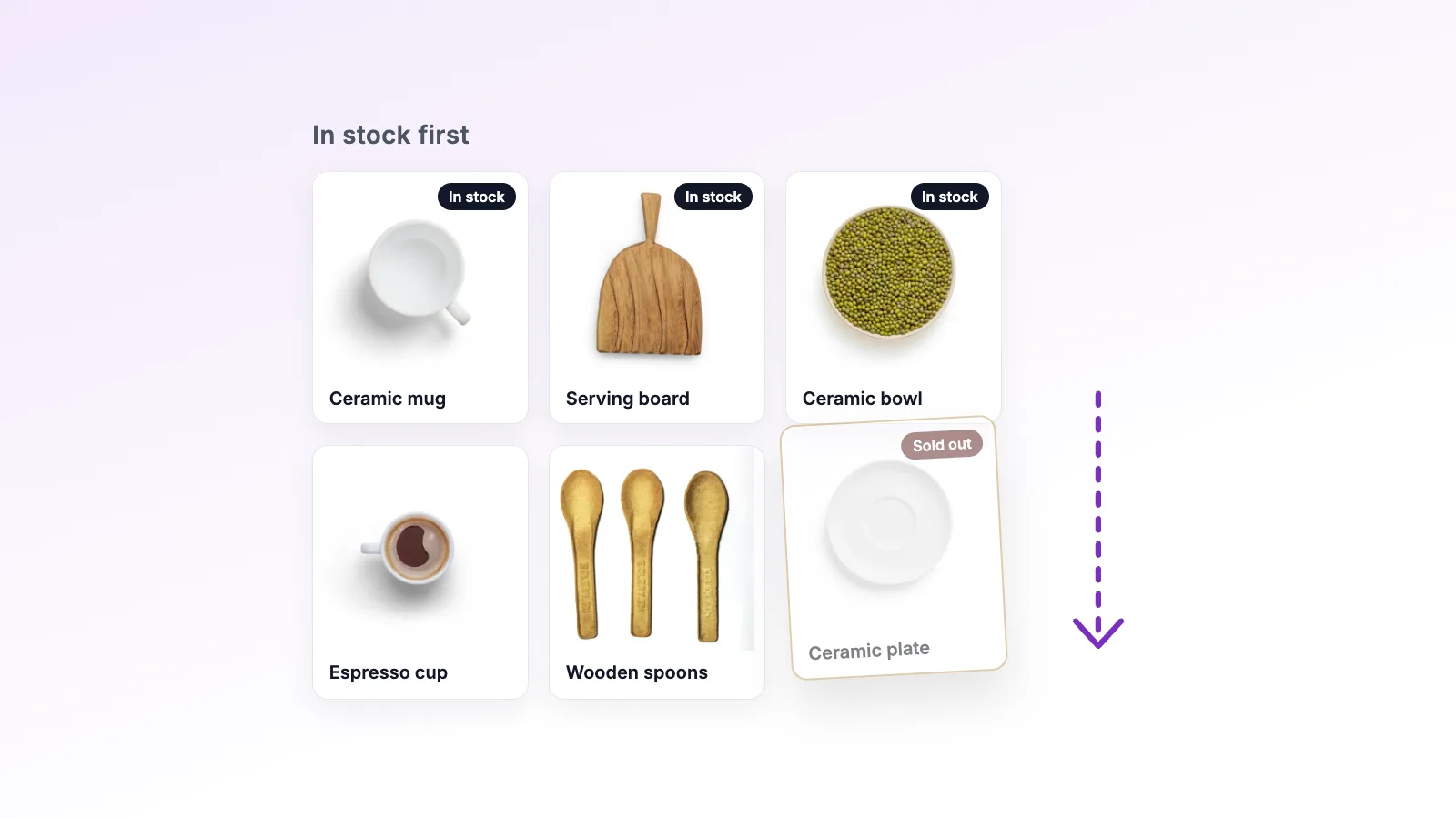
If Stock-Aware Auto Push is on in Rearrange Products → Settings, out-of-stock products are shown after in-stock ones, wherever you placed them. Backorders move down too if Also show backorders last is ticked. That's the setting doing its job, and products go back to their saved spot when they're restocked. Turn it off, or switch it off for one category on Sort by Categories, if you want sold-out products to keep their place. The out-of-stock guide covers this setting in detail.
5. Products on other pages, shortcodes and blocks
By default, Rearrange Products applies your order to the main shop and category pages. Products shown anywhere else, such as a [product_category category="mugs"] shortcode on your home page, keep WooCommerce's own order.
To change that, go to Rearrange Products → Settings, find Apply Sorting To and switch from Main Loop Only to All Loops. Your order then applies to shortcodes, widgets and custom product queries too. On a site with a lot of those it can slow pages down a little, so leave it on Main Loop Only if you don't need it.
If a product grid is built with a WooCommerce block, select the block and check its own order setting in the sidebar.
6. Page builder product widgets
Elementor, Divi, WPBakery and other page builders usually run their own product query, separate from WooCommerce's sorting. Open the product widget or module, look for its order setting and choose menu order or custom order. The exact label depends on the builder. If the widget has no such option, the builder's support team can tell you how to change the query.
7. New products appear in the wrong place
A new product starts with its menu order number as its position, and that number is 0 unless you change it. So a new product can show up near the top of the shop until you move it.
After adding products, open Rearrange Products and drag them where they belong. If you'd rather new products start near the end, set a high number in Product data → Advanced → Menu order, such as 999, before you publish them.
8. The order won't save with a big catalog
If you have hundreds or thousands of products and saving fails or hangs, the server is likely running out of memory or time. Ask your host to raise the PHP memory_limit to 256MB or more and max_execution_time to 300 seconds or more. Then save again.
9. Translated products in the wrong order (WPML)
With WPML, the order is saved in your default language and copied to each translation when you save. If translated products show up in a different order, for example after adding a new language, go to Rearrange Products → Troubleshooting and click Resync Translations. Your default-language order isn't changed.
10. Category orders broke after updating from an old version
Older versions of the plugin stored category orders differently. If category pages lost their order after an update, Rearrange Products → Troubleshooting has a Re-run Migration button that imports the old data again. Read the warning next to it first: any changes you made to category orders after the first migration will be overwritten.
Still stuck?
Try switching to a default theme such as Storefront on a staging copy of your site. If the order works there, your theme or another plugin is changing the product query. Filter and search plugins are a common source.
When you contact support, go to Rearrange Products → Troubleshooting, open System Status / Diagnostic Info and click Copy to Clipboard. Paste that into your message on the support page. It tells us your WooCommerce sorting setting, plugin settings and versions, so we can skip the back and forth.
For the basics of setting an order in the first place, see how to change the product order in WooCommerce.