Simple Custom Post Order vs Rearrange Products for WooCommerce
Simple Custom Post Order is a free drag-and-drop sorter for any post type. Rearrange Products is built for WooCommerce. Here's how they differ on category order, long catalogs and stock, and when each one is the better fit.
Simple Custom Post Order is a free plugin from Colorlib with more than 300,000 active installs and a 4.8-star rating. It adds drag and drop to the normal admin lists, so you can sort posts, pages, products and categories by hand. Rearrange Products for WooCommerce, our plugin, only sorts WooCommerce products.
Plenty of stores use Simple Custom Post Order for their products and are happy with it. This post covers where it fits, where it runs out, and what changes if you switch. The details about Simple Custom Post Order come from its WordPress.org page (version 2.8.12, checked in November 2026).
Which one to pick
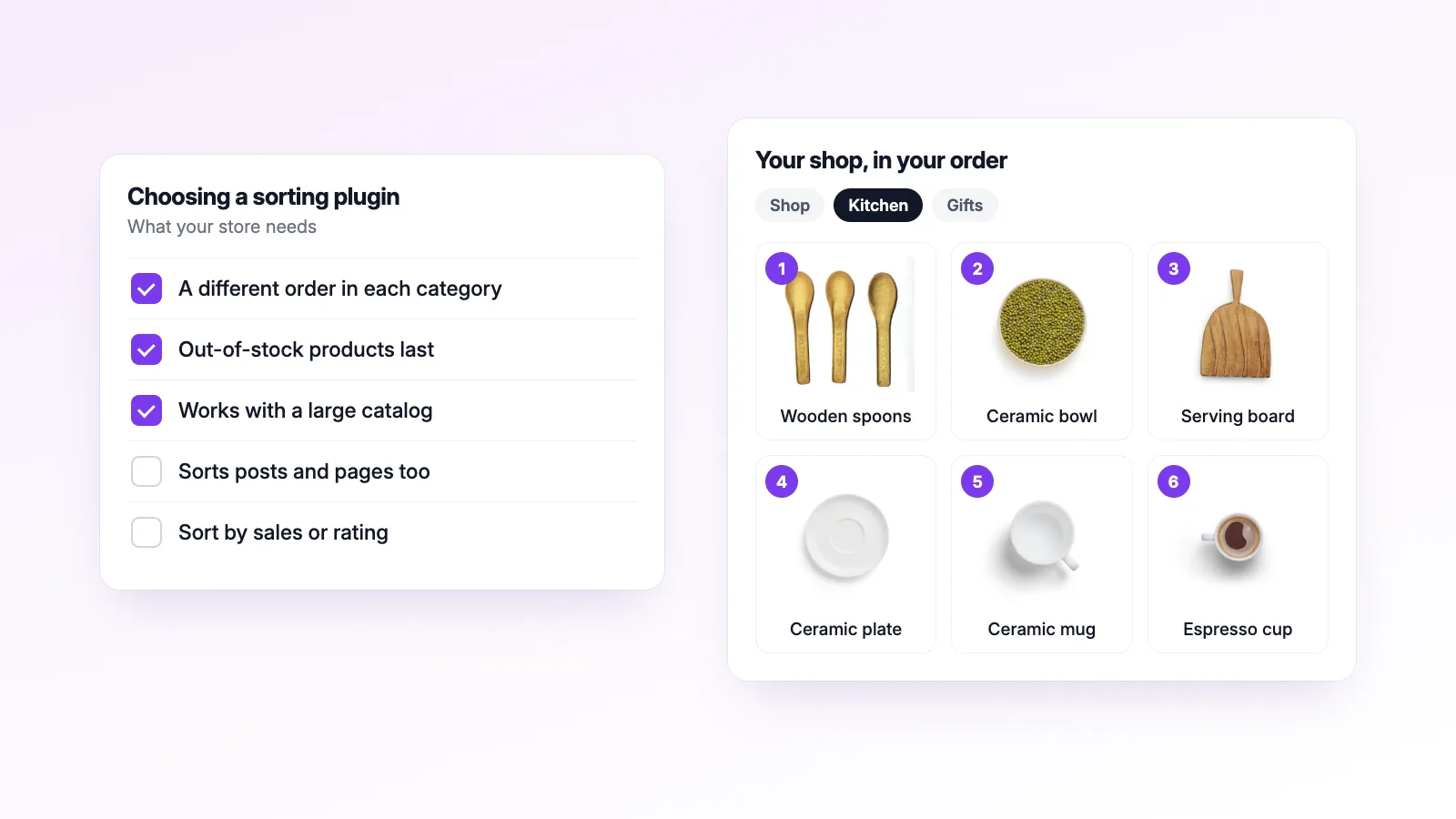
- Choose Simple Custom Post Order if you want one free plugin to sort posts, pages, products and the order of your categories, and one product order for the whole store is enough.
- Choose Rearrange Products if each category needs its own product order, or your catalog is long enough that dragging on the products list gets slow.
Feature comparison
| Simple Custom Post Order | Rearrange Products (free) | Rearrange Products Pro | |
|---|---|---|---|
| What it sorts | Any post type, plus categories, tags and other taxonomies | WooCommerce products | WooCommerce products |
| Where you sort | The normal admin list (Products > All Products) | Its own sorting screens | Its own sorting screens |
| Shop page order | Yes | Yes | Yes |
| Separate product order per category | No | Yes | Yes |
| Moving a product to another page of the list | Type its position in an Order column | Page navigation on the sorting screen | Page navigation on the sorting screen |
| Out-of-stock products last | No | Yes | Yes |
| Bulk sort by sales, price or rating | No | No | Yes, Smart Sort |
| Saved orders and schedules | No | No | Presets and Scheduled Sorting |
| Price | Free | Free | From $39.99 a year (1 site) |
How Simple Custom Post Order works
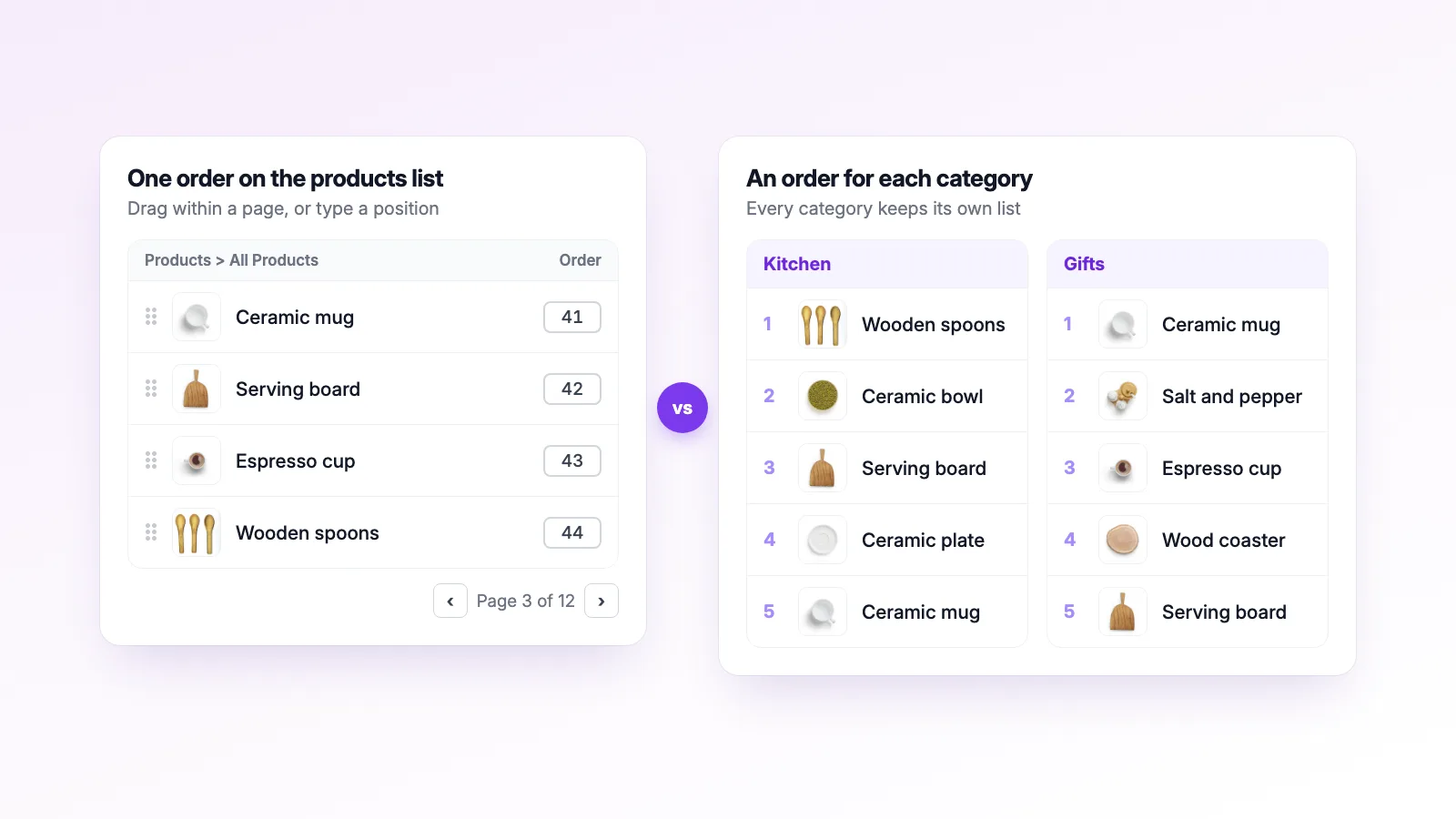
You tick the post types and taxonomies you want under Settings > SCPOrder, then drag rows on the usual admin lists. The order saves as you go. For products that's Products > All Products. Dragging also works on phones and with the keyboard.
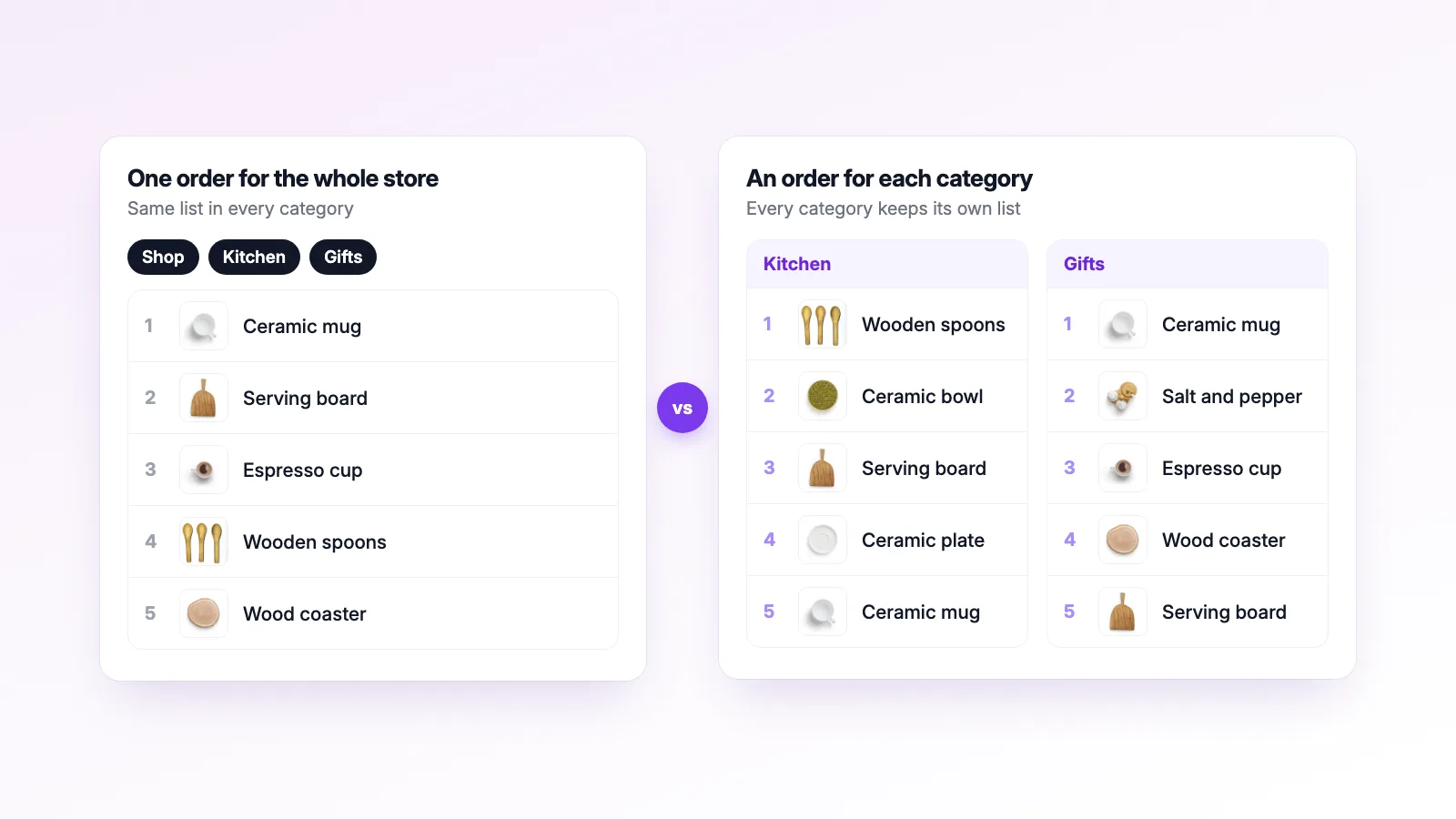
Products are saved in WordPress's built-in menu order field, one number per product. So a product has the same position on the shop page and in every category it belongs to. If the mugs come first in "Kitchen", they come first in "Gifts" as well.
Two more things that matter for stores:
- You can only drag within the page of the list you're looking at. To move a product further, its FAQ suggests turning on the Order column and typing the position.
- It also sorts the categories themselves, so you can choose the order categories appear in. That's something Rearrange Products doesn't do.
How Rearrange Products works
Instead of the All Products list, Rearrange Products gives you separate sorting screens. Sort by Products sets the main shop order. Sort by Categories lets you pick one category and arrange only the products in it, and that order is kept apart from every other category. A mug can lead "Gifts" and still sit fifth in "Kitchen", and none of this needs Pro.
Because the sorting screen is built for moving products rather than editing them, a few things work differently from dragging rows in the products table. You can select several products and drag them together, switch between a list and a grid of product images, and page through a big catalog without typing positions. Products that go out of stock can be pushed after the in-stock ones automatically (the out-of-stock guide explains the setting), and your saved order comes back once they're restocked.
It also supports WPML, and an All Loops setting carries the order into shortcodes and other product queries.
Where Simple Custom Post Order wins
- It's completely free. There's no paid version to upgrade to.
- It sorts more than products. Blog posts, pages, team members, and the order of categories and tags, all from one plugin.
- Nothing is lost when you remove it. The product order is just the menu order number on each product, so WordPress keeps it after the plugin is gone. With Rearrange Products only the shop order works that way. Its per-category orders are stored in a separate table and only apply while the plugin is active.
Where Rearrange Products wins
- A different order in each category. Simple Custom Post Order can't do this, because menu order holds one number per product.
- Long catalogs. Arranging products across many pages is easier on a screen made for sorting than by typing positions into a column.
- Store-specific tools. Out-of-stock handling in the free version, plus Smart Sort, presets and schedules in Pro.
What Pro adds
With Simple Custom Post Order every change is made by hand, one row at a time. That's fine for 40 products. With 600 it means a lot of dragging and a lot of typing into the Order column. Pro is mostly about not having to do that.
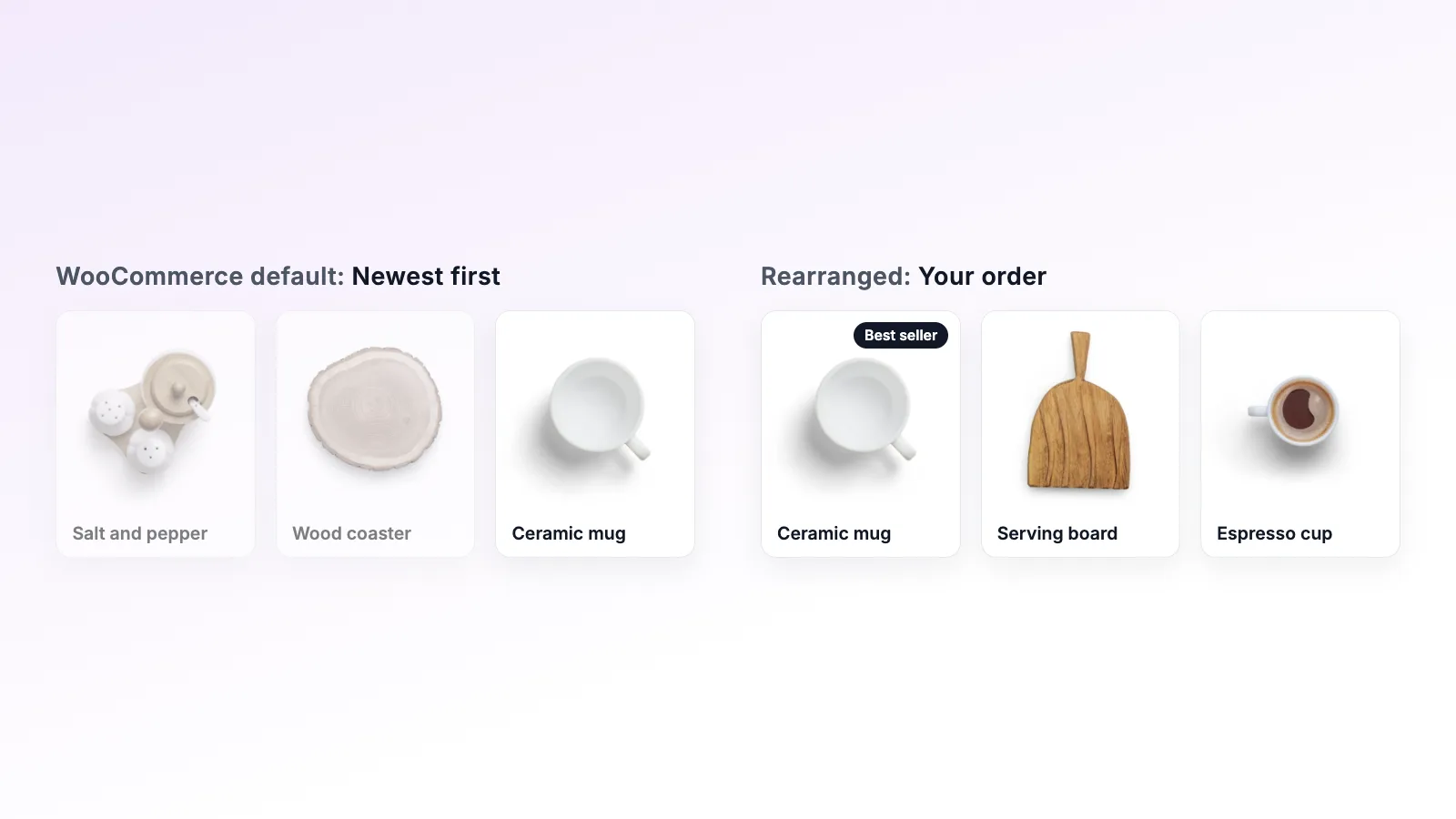
Smart Sort builds the order for you from store data. Pick best sellers, most rated, in stock first, price (either direction), newest, oldest, A to Z or shuffle, for the whole shop or a single category. You can still drag the odd product afterwards if one needs to sit somewhere else.
Presets save an order under a name so you can go back to it. If you rearrange the shop for a holiday sale, the everyday order is still there when the sale is over. Scheduled Sorting switches between presets on dates you choose, in your store's timezone, so nobody has to remember to do it at midnight.
Import/Export moves orders between sites as a file, matching products by SKU when the IDs don't line up. That's handy if you build the order on a staging copy first.
Pro also comes with priority email support. It starts at $39.99 a year for one site, and there are 5-site and 25-site plans. Prices are on the pricing page, and the seasonal collections post walks through presets and schedules with a real example.
Switching from Simple Custom Post Order
You don't have to rebuild anything. The first time Rearrange Products is activated, it reads the menu order Simple Custom Post Order has been saving and uses it as the shop order. Then you only open the categories that need their own arrangement.
To avoid two plugins changing the same product query, go to Settings > SCPOrder and untick Products. Leave the rest ticked if you still want it sorting posts, pages or the category list.
Common questions
Can I use both plugins? Yes, as long as they don't both sort products. Untick Products in Simple Custom Post Order and let it handle the rest.
What happens to my order if I switch back later? Your shop order carries over, since Rearrange Products writes it to menu order too. Whatever shop order you saved last is what Simple Custom Post Order will show. The per-category orders don't carry over, because Simple Custom Post Order has nowhere to store them.
Does Rearrange Products sort the categories themselves? No. It sorts the products inside each category. To change the order categories are listed in, keep using Simple Custom Post Order or WooCommerce's own category sorting.
Comparing other plugins too? There's a Post Types Order comparison and a roundup of WooCommerce sorting plugins, and the video tutorials show the sorting screens.