The best WooCommerce product sorting plugins in 2026
Six ways to control the product order in WooCommerce, from the built-in sorting to plugins like Post Types Order and Simple Custom Post Order. What each one does well, where it stops, and which fits your store.
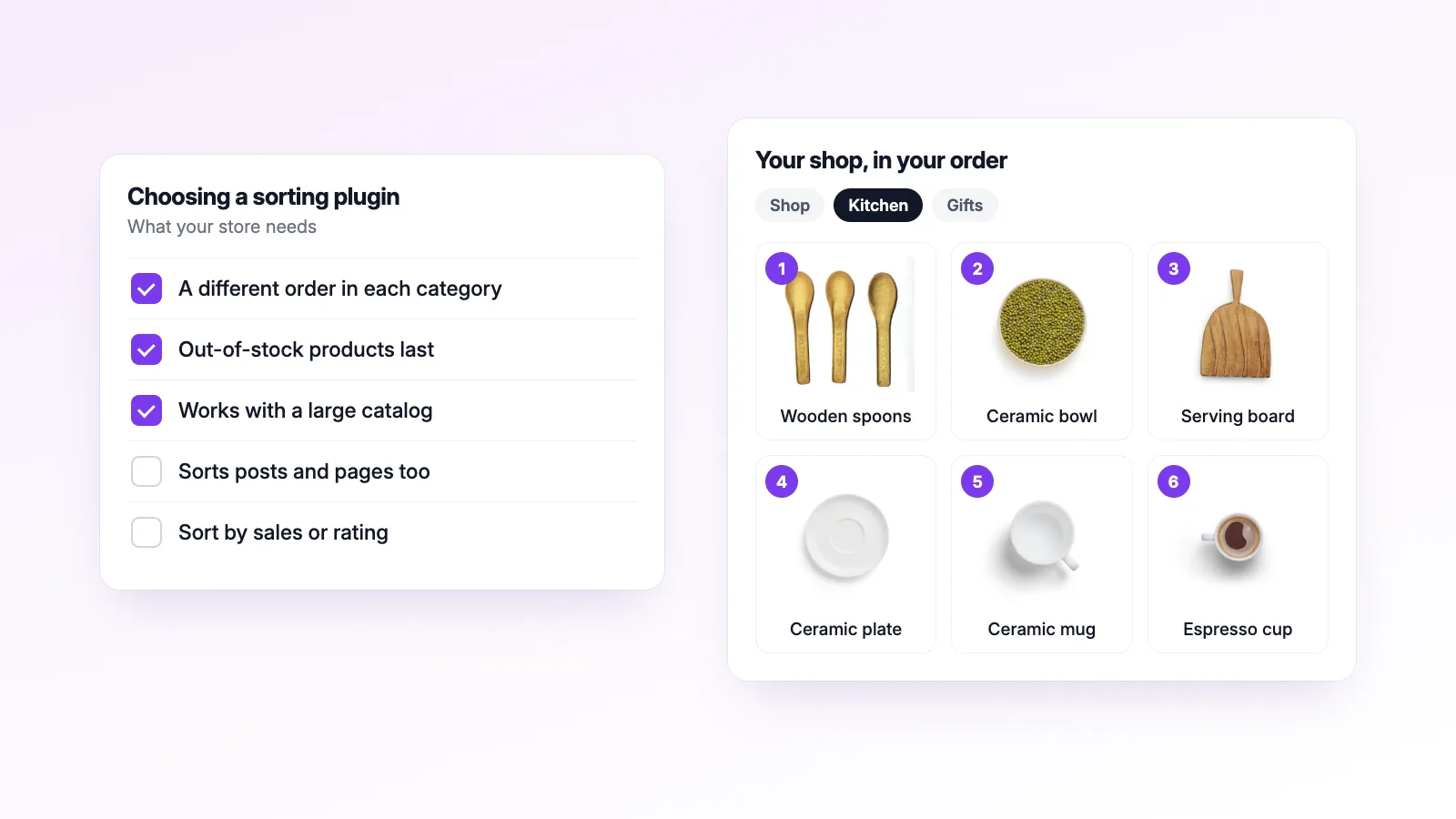
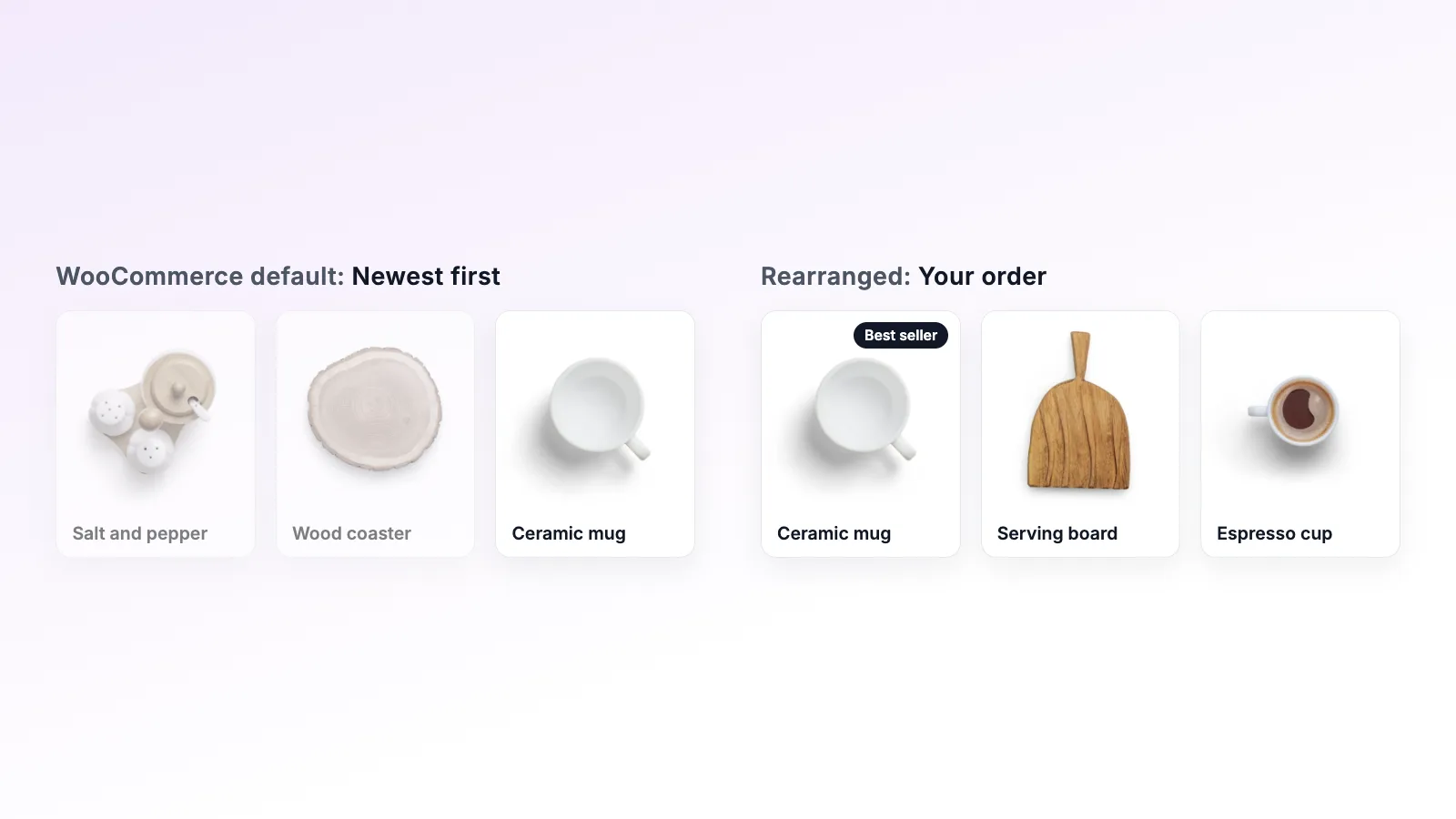
"Product sorting" can mean two different things in WooCommerce. One is the order you choose for your shop: which products come first on the shop page and in each category. The other is the Sort by dropdown that lets shoppers re-sort the list by price, rating or name. Most of the plugins people recommend handle the first. One on this list handles the second, and they work fine together.
We make Rearrange Products for WooCommerce, so we're not neutral. To keep this useful anyway, every other plugin here is described from its own WordPress.org page (checked on 15 November 2026), install counts and ratings included, and we say plainly where another option is the better choice.
Quick picks
| If you want | Pick |
|---|---|
| To try it without installing anything | WooCommerce's built-in sorting |
| A different product order in each category, for free | Rearrange Products for WooCommerce |
| One plugin that also sorts posts, pages and other post types | Post Types Order or Simple Custom Post Order |
| To sort the categories themselves as well | Simple Custom Post Order |
| More options in the shoppers' Sort by dropdown | Extra Product Sorting Options for WooCommerce |
What to check before you pick
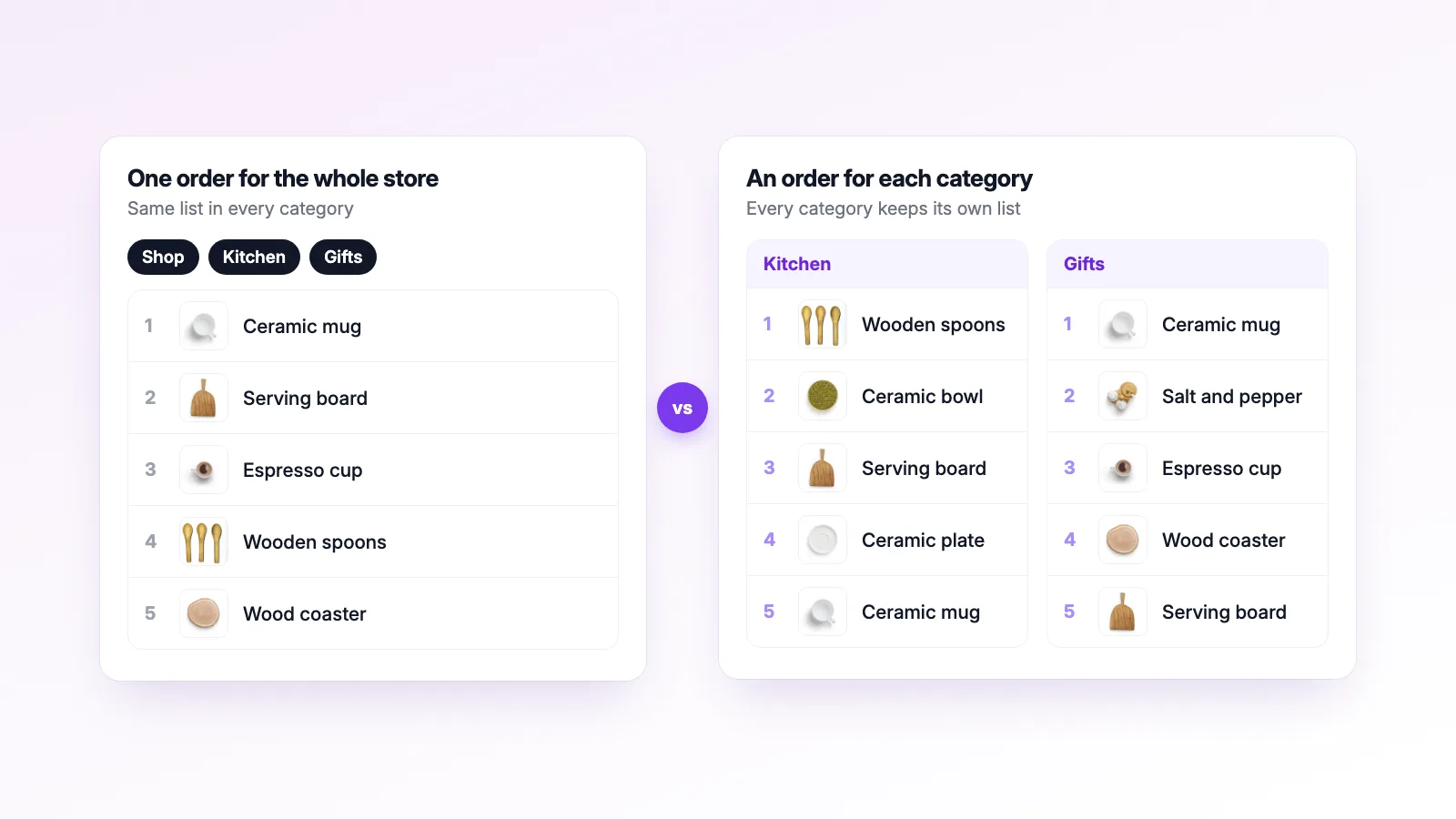
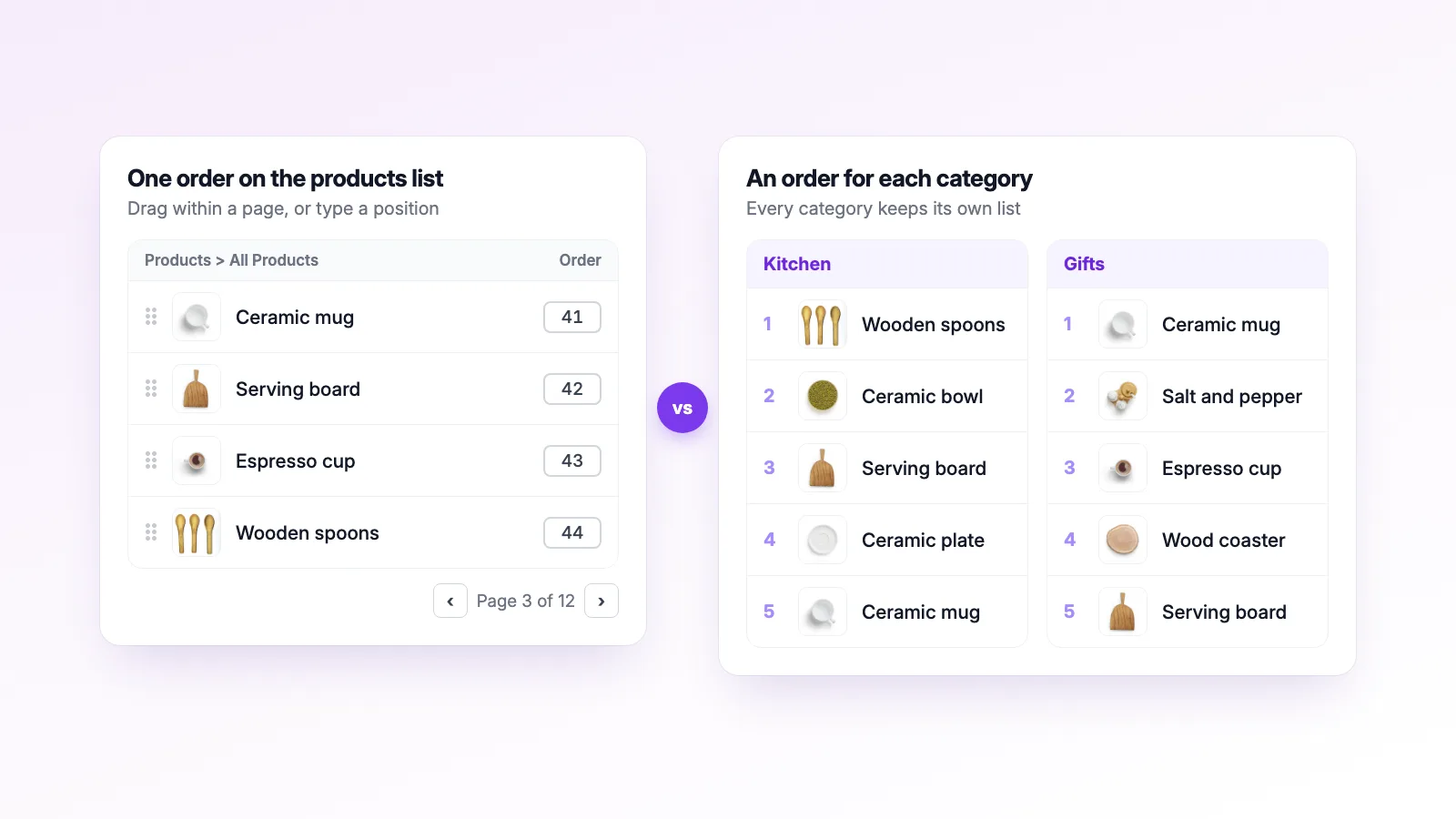
One order or one per category. WordPress gives each product a single menu order number. Any tool that only uses that number gives a product the same position everywhere: if the mugs are first in "Kitchen", they're also first in "Gifts". If your categories need different arrangements, you need a plugin that stores category orders separately.
Catalog size. Dragging rows on the products list is fine for 50 products. With 2,000, you need a way to move a product from page 30 to page 1 without typing numbers.
Stock. Sold-out products sitting in the top rows cost clicks. Check whether the tool can move them down without wrecking the order you set. There's more on this in the out-of-stock guide.
What happens if you remove it. Plugins that only write to menu order leave it behind when deactivated. Anything stored in a plugin's own table stops applying when the plugin is off.
Maintenance. Look at the last update and the "tested up to" version. A sorting plugin hooks into every product query, so an abandoned one can break after a WordPress or WooCommerce update.
1. WooCommerce's built-in sorting
WooCommerce already has a basic drag-and-drop order. Go to Products > All Products, click Sorting at the top of the list, and drag products into place. For the shop to use it, the default product sorting (under Appearance > Customize > WooCommerce > Product Catalog) needs to be "Default sorting (custom ordering + name)".
It saves to menu order, so it's one order for the whole store. You can filter the sorting view by category, but dragging there still changes the same single number, so it affects every other category the product is in.
Good for: small shops that want a few products at the top. Price: free, nothing to install.
2. Rearrange Products for WooCommerce
Our plugin, rated 4.6 stars from 58 reviews on WordPress.org. It only sorts WooCommerce products, using its own screens: Sort by Products for the main shop and Sort by Categories for each category. Every category keeps its own order, in the free version, so a product can be first in "Gifts" and tenth in "Kitchen".
The free version also has Stock-Aware Auto Push (out-of-stock products shown last without changing your saved order), multi-select dragging, list and grid views with page navigation, WPML support and an All Loops setting for shortcodes and other product queries. Pro adds Smart Sort (best sellers, rating, price and more in one click), saved presets, scheduled orders for sales, and import/export.
It writes the shop order to menu order too, so that part stays if you remove it. The category orders live in its own table and stop applying when it's deactivated.
Good for: stores with categories that need their own order, and larger catalogs. Price: free on WordPress.org. Pro from $39.99 a year (pricing).
3. Post Types Order
Post Types Order by nsp-code has more than 600,000 active installs and a 4.5-star rating from 296 reviews. It sorts any non-hierarchical post type, products included, either on the normal admin list or on a separate Re-Order page. Its AutoSort setting applies the order on the front end without code.
The free version uses menu order, so one order for the whole store. Per-category sorting, WooCommerce-specific features and WPML are in the paid Advanced Post Types Order, a one-time purchase. The Re-Order page shows up to 500 items by default.
Good for: sites that also sort posts, portfolios or team pages and need one product order. Price: free; Advanced from $39 one time.
We compared it in detail in Post Types Order vs Rearrange Products.
4. Simple Custom Post Order
Simple Custom Post Order by Colorlib has 300,000+ active installs and the best rating on this list, 4.8 stars from 589 reviews. You choose post types and taxonomies under Settings > SCPOrder and drag rows on the usual admin lists, including on touch screens and with the keyboard.
Products use menu order, so again one order for the whole store. Dragging only works within the page of the list you're on; for longer moves you turn on an Order column and type the position. Unlike most plugins here, it can also sort the categories themselves.
Good for: small to medium catalogs, and sites that want posts, pages and category order handled by one free plugin. Price: free, no paid version.
The full comparison is in Simple Custom Post Order vs Rearrange Products.
5. Intuitive Custom Post Order
Intuitive Custom Post Order has 400,000+ active installs and a 4.4-star rating from 139 reviews. It works much like Simple Custom Post Order: turn on the post types and taxonomies under Settings > Intuitive CPO, then drag on the admin lists. It also sorts sites on Multisite.
It stores one menu order per product. To move a product across pages, its FAQ suggests raising "Number of items per page" in Screen Options so everything fits on one page. The thing to note is maintenance: at the time of writing, its last update was in September 2025 and it was tested up to WordPress 6.8.
Good for: existing sites already using it for posts and pages. Price: free.
6. Real Custom Post Order
Real Custom Post Order by devowl.io is smaller, with about 8,000 active installs and a 4.8-star rating from 42 reviews. It adds drag and drop for posts, pages, WooCommerce products and other custom post types, and is kept up to date (tested up to WordPress 7.1).
It saves to menu order and doesn't sort taxonomies. So it's one product order for the store, the same as the other general-purpose plugins.
Good for: sites that already use devowl's other plugins, like Real Category Management. Price: free.
For the Sort by dropdown: Extra Product Sorting Options for WooCommerce
Extra Product Sorting Options by SkyVerge (10,000+ installs, 4.6 stars) doesn't change your own order. It adds choices to the dropdown shoppers use: A to Z, Z to A, on sale, review count and availability. It can also rename "Default sorting" to something like "Our picks", or remove options you don't want.
It pairs well with any of the plugins above. You set the default order with one of them, and shoppers who'd rather browse alphabetically still can.
Price: free.
All six side by side
| Built-in | Rearrange Products | Post Types Order | Simple Custom Post Order | Intuitive CPO | Real CPO | |
|---|---|---|---|---|---|---|
| Separate order per category | No | Yes, free | Paid version | No | No | No |
| Sorts other post types | No | No | Yes | Yes | Yes | Yes |
| Sorts the categories themselves | Yes | No | No | Yes | Yes | No |
| Out-of-stock products last | No | Yes, free | No | No | No | No |
| Sort by sales, rating, stock or price in one click | No | Pro (Smart Sort, 9 criteria) | Paid version, by fields like date or name | No | No | No |
| Saved orders you can switch between | No | Pro (Presets) | Paid version (several sort lists) | No | No | No |
| Orders that switch on a schedule | No | Pro (Scheduled Sorting) | Not listed | No | No | No |
| Copy orders to another site | No | Pro (Import/Export, matched by SKU) | Not listed | No | No | No |
| Rating | n/a | 4.6 | 4.5 | 4.8 | 4.4 | 4.8 |
| Price | Free | Free, Pro from $39.99/yr | Free, paid from $39 | Free | Free | Free |
WooCommerce's built-in category sorting is under Products > Categories, where you can drag categories into order.
Which one fits your store
- Under 50 products, one order is enough: start with the built-in sorting. If you want it on other content too, add Simple Custom Post Order.
- Categories that need their own order: Rearrange Products free, or Advanced Post Types Order if you'd rather pay once.
- Hundreds or thousands of products: a plugin with its own sorting screen and paging, rather than dragging on the products list.
- Sorting by sales, rating or stock without dragging: Rearrange Products Pro's Smart Sort, or Advanced Post Types Order's automatic sort by fields.
- Shoppers want more ways to sort: add Extra Product Sorting Options on top of whichever you choose.
If you'd rather not add a plugin at all, the code snippet vs plugin post shows the code approach and its limits.
Common questions
Can I use two sorting plugins at once? Only if just one of them sorts products. Two plugins changing the same product query will fight, and the result depends on which runs last. Keep a general plugin for posts and pages if you like, but switch products off in it.
Why isn't my new order showing on the shop? Usually the default sorting setting, a caching plugin, or a theme that sets its own order. The product order not changing post goes through the common causes.
Will I lose my order if I switch plugins? Not the shop order, as long as both plugins use menu order. Rearrange Products reads the existing menu order when it's first activated, so you start from what you had. Per-category orders are a different story: they're stored by the plugin that made them and don't move to another one.